

AI tools for beginners can sound complicated, but getting started is much easier than most people think. This guide explains AI in plain English, shows which free tools are worth opening first, and gives you 12 everyday tasks you can hand to AI today, with prompts you can copy and paste.
Who this guide is for
Complete beginners, students, and busy professionals who want to use AI for ordinary tasks without learning to code.
What you will get
A simple explanation of AI, a free tools list, a first-week plan, and 12 ready-to-use prompts for everyday life.
Most beginner guides throw a long list of apps at you and leave you to figure out the rest. A better approach is to pick one tool and one real task, then build from there. Both Microsoft Learn’s everyday AI module and Google AI Essentials take this same task-first approach. If you want to see what happens behind the screen, read our guide on how AI tools work.
What Are AI Tools for Beginners, and Why Start Using Them Today?
Artificial intelligence (AI) is software that performs tasks that normally need human thinking, such as understanding language, recognizing patterns, and making predictions. If you have ever used a map app that reroutes around traffic or a streaming service that recommends a show, you have already used AI. For a deeper definition, DataCamp’s beginner guide to AI is a good place to read more.
The AI tools for beginners in this guide belong to a type called generative AI. You type a request in normal language, and the tool writes, explains, summarizes, or creates something in response. There are four good reasons to start now:
- No coding needed. If you can write a text message, you can use these tools.
- Free plans exist. Most major tools let you start without paying anything.
- Quick wins. Emails, summaries, plans, and brainstorms get faster from the very first session.
- The skill transfers. Tools change, but describing a task clearly and checking the result work everywhere.
Good to know: AI tools are fast assistants, not sources of truth. They can be confidently wrong, so treat every answer as a first draft that you review.
How to Explain AI in Simple Terms
Here is the simplest way to put it: an AI chat tool is like a very well-read assistant that has studied patterns in huge amounts of text, and uses those patterns to predict a helpful reply. It does not think or understand the way a person does. It is extremely good at language patterns, which is why it can draft an email in seconds, and also why it sometimes states something false in a very convincing tone.
How to explain AI to an older person or a child: “It is a computer program you can chat with. You ask it a question or give it a job, like writing a letter, and it answers. Think of a helpful librarian who has read millions of books but sometimes misremembers a detail, so you always double-check anything important.”
The 5 Types of AI Tools for Beginners You Need to Know
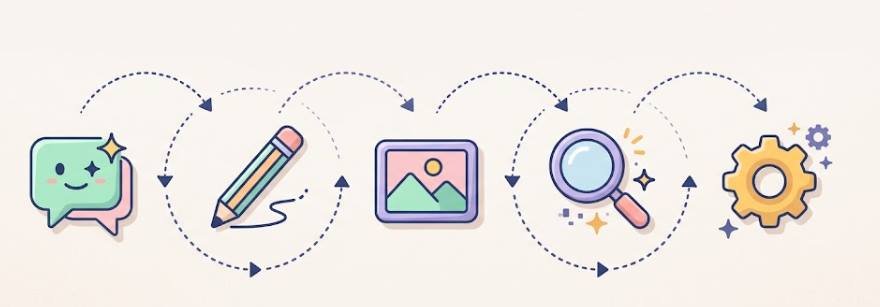
You do not need dozens of apps. Almost every one of the AI tools for beginners fits into one of five groups, and most people only need one or two:
- Chat assistants answer questions, draft text, summarize, and brainstorm. This is the best starting point.
- Writing helpers fix grammar, tone, and clarity in text you have already written.
- Image generators turn a text description into a picture or graphic.
- Research tools search the web or your own documents and show where an answer came from.
- Productivity and automation tools transcribe meetings, organize notes, or connect apps so routine steps run on their own.
Want examples of each category? See our full breakdown in Types of AI Tools Explained.
Free AI Tools for Beginners: What You Get Without Paying
Free plans on the best AI tools for beginners are generous enough for most everyday use. The table below shows what each popular tool is best for and the usual catch. Free limits change often, so always confirm the current details on each tool’s official pricing page. For a closer look at one tool’s tiers, read our ChatGPT review.
| Tool | Best for | What the free plan usually covers | Typical catch |
|---|---|---|---|
| ChatGPT | All-round writing, ideas, explanations | Everyday chat and basic features | Usage caps and slower access at busy times |
| Claude | Writing, long documents, careful reasoning | Everyday chat with a daily message allowance | Message limits that reset over time |
| Gemini | Google apps, quick answers, images | Chat and basic generation with a Google account | Advanced models and higher limits are paid |
| Microsoft Copilot | Quick web-connected answers | Chat and basic image creation | Features inside Microsoft 365 apps often need a paid plan |
| Perplexity | Research with linked sources | Standard searches with cited answers | Deep research modes are limited |
| Canva | Simple design and presentations | Core design tools and some AI features | Many AI features have monthly use limits |
| Grammarly | Grammar, spelling, and tone cleanup | Basic corrections | Advanced rewriting is paid |
What free plans usually give you
- Enough daily use for writing, planning, and learning
- A real chance to test whether a tool fits your routine
- Access to a capable model without a credit card
What you usually give up
- Daily or hourly usage limits
- Access to the newest or most powerful models
- Larger file uploads and some advanced features
One honest note: no AI tool is “100% free” forever. Free plans are real, but they come with limits, and companies can change them at any time. That is why the best habit is to learn the skill, not just one app.
How to Start Using AI Tools for Beginners Today: Your First-Week Plan
Beginners often give up because they do not know what to do after signing up. This simple plan takes about 10 to 15 minutes a day:
- Day 1: Pick one chat assistant. Create a free account and ask it a simple question you already know the answer to, so you can judge its quality.
- Day 2: Write a real email. Give it rough notes and ask for a clean draft. Edit it in your own voice.
- Day 3: Summarize something long. Paste an article or report and ask for the key points in plain language.
- Day 4: Make a plan. Ask for a weekly schedule, meal plan, or study plan that fits your actual constraints.
- Day 5: Practice follow-ups. Take one answer and refine it with “make it shorter,” “use simpler words,” or “add an example.”
- Day 6: Fact-check one answer. Verify a claim from a reliable source so you learn how often AI gets details wrong.
- Day 7: Save your best prompts. Keep the three prompts that worked best in a note so you can reuse them.
Quick tip: Always start with a task you genuinely need done. A real task teaches you more in ten minutes than an hour of watching tutorials.
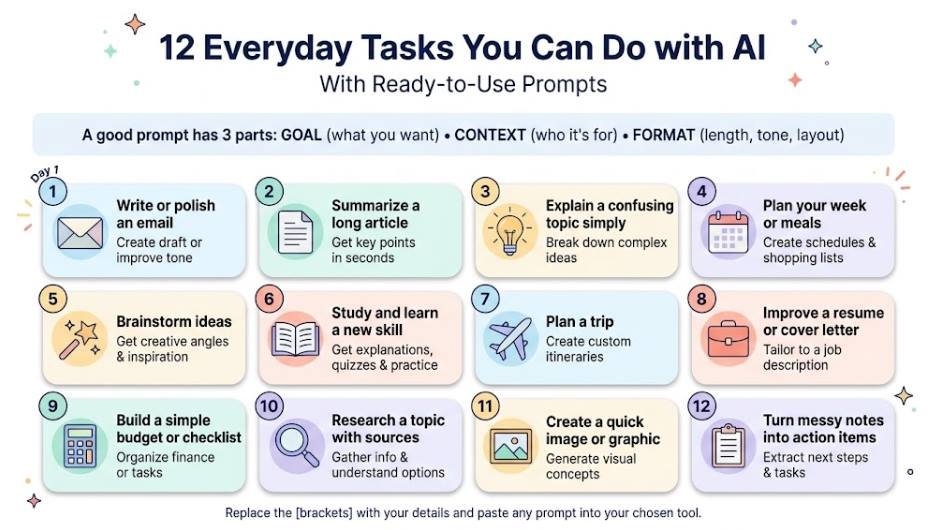
12 Everyday Tasks You Can Do with AI, With Ready-to-Use Prompts
A good prompt has three parts: the goal (what you want), the context (who it is for and any details), and the format (length, tone, or layout). Replace the text in [brackets] with your own details and paste any of the prompts below into your chosen tool.
1. Write or polish an email
Turn rough notes into a clear, polite message, or soften a message that sounds too blunt.
Prompt to try: Write a friendly, professional email to [person] about [topic]. Include these points: [point 1, point 2]. Keep it under 120 words and end with a clear next step.
2. Summarize a long article or document
Save reading time by asking for the main points first, then decide whether the full text is worth your attention.
Prompt to try: Summarize the text below in 5 bullet points for a busy reader. Then list any numbers or dates I should double-check. [paste text]
3. Explain a confusing topic simply
AI is a patient tutor. You can ask the same question five different ways without feeling embarrassed.
Prompt to try: Explain [topic] as if I am a complete beginner. Use one everyday analogy and end with 3 questions to test my understanding.
4. Plan your week or meals
Give AI your real constraints, such as time, budget, or food preferences, and it will build a practical plan you can adjust.
Prompt to try: Create a 5-day dinner plan for [number] people. Budget: [amount]. Cooking time: under 30 minutes. Avoid [ingredient]. Add a combined shopping list grouped by store section.
5. Brainstorm ideas
Gift ideas, project names, party themes, or content topics: AI is great at producing a long list quickly so you can pick the best.
Prompt to try: Give me 15 ideas for [goal]. Mix practical and creative options, and mark the 3 most realistic for someone with [budget or time limit].
6. Study and learn a new skill
Ask for a study plan, practice questions, or flashcards. This works well for students as well as adults learning something new.
Prompt to try: I want to learn [skill] in [number] weeks, studying [time] per day. Create a week-by-week plan with one small practice task for each week.
7. Plan a trip
Use AI to draft an itinerary and packing list, then verify opening hours, prices, and travel rules on official sites before you book anything.
Prompt to try: Plan a relaxed [number]-day trip to [place] for [who is traveling]. We like [interests]. Group each day into morning, afternoon, and evening, and add one rainy-day backup.
8. Improve a resume or cover letter
AI can tighten weak bullet points and tailor your wording to a job post. Keep every claim truthful, because the final version needs to be accurate and yours.
Prompt to try: Rewrite this resume bullet to be clearer and more specific for a [job title] role, using strong action verbs. Do not invent any facts. Bullet: [paste bullet]
9. Build a simple budget or checklist
AI can create a clean template for tracking spending or planning a project. It is a helpful organizer, but it is not a financial advisor, so make money decisions yourself.
Prompt to try: Create a simple monthly budget template with categories for [your categories]. Show it as a table and add a short checklist for reviewing it at the end of each month.
10. Research a topic with sources
For research, choose a tool that shows its sources, such as Perplexity, and click through to confirm the important claims yourself.
Prompt to try: Give me a short overview of [topic], including the main viewpoints and where experts disagree. List the sources you used.
11. Create a quick image or graphic
Describe what you want and let an image tool do the first draft. This is useful for social posts, presentations, and invitations. Check each tool’s terms before using images commercially.
Prompt to try: Create a clean, modern illustration of [subject] in [style and colors] for a [use, such as a presentation slide]. Leave empty space on the left for text.
12. Turn messy notes into action items
After a meeting or class, paste your rough notes and let AI sort them into something you can act on.
Prompt to try: Turn these notes into a short summary, a list of decisions, and a to-do list with owners and deadlines where mentioned. Mark anything unclear. [paste notes]
The Best AI Tools for Beginners and Everyday Tasks: Which Should You Pick?
If you only want one of the AI tools for beginners, start with a general chat assistant. It handles the widest range of tasks and shows you which specialist tool you might need later. Use this table as a quick reference, and read how to choose the right AI tools for a deeper selection framework.
| Task | Best tool | Why it fits | Backup option |
|---|---|---|---|
| Emails and everyday writing | ChatGPT or Claude | Natural, flexible drafting | Gemini |
| Fixing grammar and tone | Grammarly | Built for polishing existing text | Any chat assistant |
| Research with sources | Perplexity | Shows linked sources for answers | Gemini |
| Summarizing long documents | Claude or NotebookLM | Handles long text well | ChatGPT |
| Working inside Google apps | Gemini | Connects to Docs, Gmail, and Drive | ChatGPT |
| Working inside Microsoft apps | Microsoft Copilot | Built into Word, Excel, and Outlook | ChatGPT |
| Presentations and graphics | Canva | Templates plus AI design help | Gemini image tools |
| Meeting notes and transcripts | Otter.ai | Turns speech into searchable notes | Built-in meeting tools |
Want a closer look at one of the main chat tools? Our ChatGPT review covers features, pricing tiers, and limitations in detail.
Can AI Do Tasks for You? What It Can and Can’t Automate
Yes, within limits. Basic AI tools produce text, plans, and images for you to use. A newer group of tools, often called AI agents, can also take actions such as filling forms, organizing files, or connecting apps. Even then, you should review what the tool did before it affects anything important.
What AI does well
- First drafts: emails, outlines, summaries, and plans
- Repetitive work: reformatting, sorting, and transcribing
- Idea generation: long lists of options to choose from
- Explaining: breaking down hard topics step by step
What AI should not do alone
- Final decisions: health, legal, money, or safety choices
- Fact claims: numbers, dates, and quotes without checking
- Sensitive messages: anything where tone and trust matter deeply
- Unsupervised actions: payments, sending messages, or deleting files
How to Use AI Properly: The 30% Rule and Other Simple Rules
You may see people mention a “30% rule” for AI. It is an informal rule of thumb, not an official standard, and different people use it differently. The most useful version for beginners is this: let AI do the heavy first 70%, and keep the final 30% for yourself. That last 30% is where you check facts, add your own experience, fix the tone, and decide whether the result is good enough to use. If you are a student, also follow your school’s rules on AI use.
Add these simple habits and your results will improve quickly:
- Be specific. Include the goal, the audience, and the format you want.
- Verify what matters. Check names, numbers, dates, and anything that would embarrass you if wrong.
- Iterate. Small follow-ups like “shorter” or “add an example” beat one giant prompt.
- Keep your voice. Edit the output so it sounds like you, not like a template.
- Stay in charge. Use AI as a helper, never as the final decision maker.
Ready to go further? Our guide on how to get the most out of AI tools covers more advanced tips.
What Never to Paste into an AI Tool
Anything you type may be stored, and depending on the tool and your settings it may be used to improve the service. A simple rule: if you would not post it publicly, think twice before pasting it. Keep these out of AI chats:
- Passwords, PINs, and security codes
- Bank account, credit card, and government ID numbers
- Medical records or other private health details
- Confidential work files, client data, or unreleased company plans
- Private information about other people, such as addresses or personal messages
Safer habit: Replace real names and numbers with placeholders such as “Client A” or “[amount]”, and check the privacy and data settings of each tool, because many offer an option to limit how your chats are used.
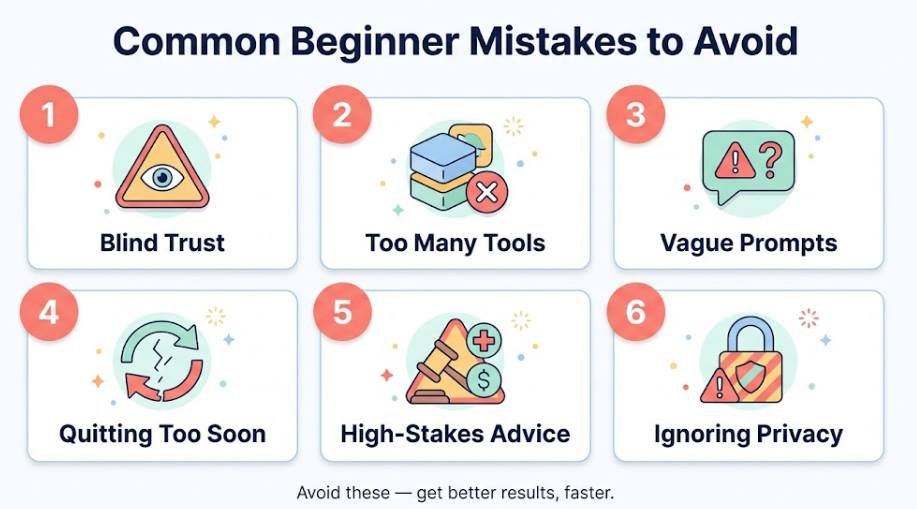
Common Beginner Mistakes to Avoid
- Trusting answers blindly. AI sounds sure even when it is wrong. Always review before you share or submit anything.
- Signing up for too many tools. Master one before adding another.
- Writing vague prompts. A generic request gets a generic answer. Add context and an example of what you want.
- Quitting after one bad result. Most weak answers improve with a clearer follow-up.
- Using AI for high-stakes advice. For law, medicine, or finance, talk to a qualified professional.
- Ignoring privacy. Pasting sensitive information is the most avoidable mistake of all.
Free vs. Paid AI Tools for Beginners: When Is It Worth Upgrading?
For most beginners, the free plan is enough for a long time. Paid plans make sense when the free version starts getting in your way, not before.
Stay on the free plan if
- You use AI a few times a week for simple tasks
- You rarely hit usage limits
- You are still learning what you need
Consider upgrading if
- You keep hitting limits in the middle of real work
- You need to upload larger files or longer documents
- One paid-only feature would save you hours every week
Monthly check: If you try a paid plan, set a reminder to review it after one month. If you are not using the extra features regularly, cancel and return to the free plan.
Frequently Asked Questions
What are the best AI tools for beginners?
A general chat assistant such as ChatGPT, Claude, or Gemini is the best starting point. They handle writing, summarizing, planning, and explaining in plain language, and all offer a free plan. Pick one, use it for a real task, and add specialist tools only when you need them.
What are the 5 main types of AI tools?
Chat assistants, writing helpers, image generators, research tools, and productivity or automation tools. Our guide to types of AI tools explains each one with examples.
How can I learn AI for free as a beginner?
Start by using a free chat assistant on real tasks, which is the fastest way to learn. For structured lessons, try the free Microsoft Learn module on everyday AI tasks and the beginner resources on Google’s AI skills page, where some courses are marked as no charge.
Which AI is 100% free?
No major AI tool is unlimited and free forever. Most have a free plan with usage limits, and those limits can change. Check each tool’s official pricing page for the current details.
Do AI tools for beginners require coding skills?
No. Beginner-friendly tools work with plain language. You type what you want, and the tool responds. The useful skill is clear communication, not programming.
Is it safe to use AI tools?
It is safe when used carefully. Avoid pasting passwords, financial details, medical records, or confidential work files, review your privacy settings, and verify important facts before relying on an answer.
Can I use more than one AI tool together?
Yes. A common setup is a chat assistant for writing and thinking, a research tool for sourced answers, and a design tool for visuals. Add tools one at a time as real needs appear.
Final Thoughts
You do not need to master AI to benefit from these AI tools for beginners. Choose one free tool, give it one real task today, check the result, and improve it with a follow-up. Do that for a week and the whole thing will feel natural. When you are ready for more, explore our guides on how AI tools work and getting the most out of AI tools, and keep building one small habit at a time.