I’ve used a calendar app that couldn’t handle time zones. Booked a meeting with someone in London. Showed up an hour late. Not my finest moment.
Calendar tools look simple from the outside. A grid. Some boxes. How complicated can it be? Then you try to schedule a recurring meeting across three time zones with a client who keeps rescheduling, and suddenly you’re neck-deep in features you didn’t know existed.
Here’s what actually matters when you’re picking a calendar or scheduling tool. Whether you’re buying through an affiliate link or just shopping around, these are the things worth checking before you commit.
1. Natural Language Input (Type It Like You Say It)
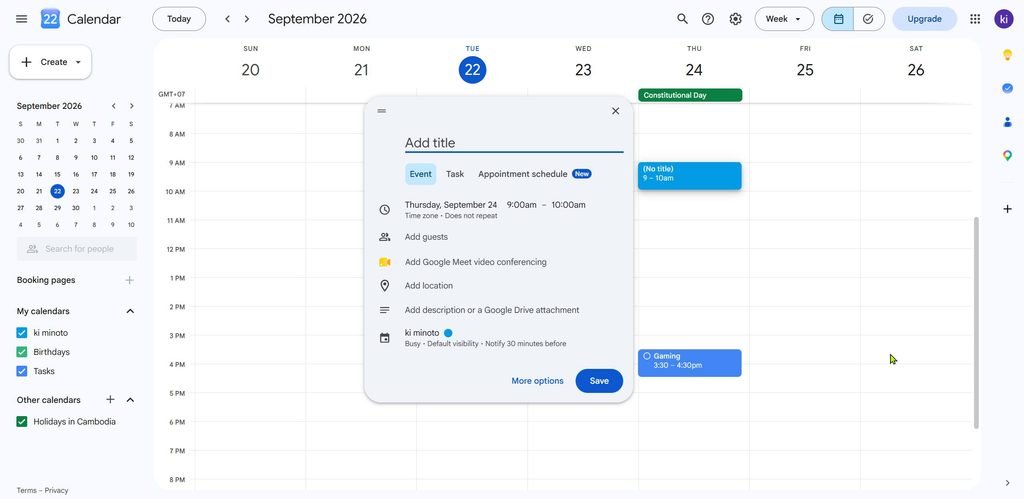
Typing “Lunch with Sarah next Friday at noon” and watching the app create the event is magic the first time it works. No date picker. No scrolling through months. Just type and done.
Fantastical nails this. For instance, type “remind me to Buy Milk on Tuesday” and it creates a task with a due date. Similarly, type “third Thursday of every month” and it understands the recurrence. In fact, the parser handles weird phrases like “last weekday of the month” without breaking a sweat. That level of flexibility matters because real life doesn’t fit into neat dropdown menus.
Google Calendar has some natural language support too, but it’s more limited. You can type “Dinner Friday 7pm” in the quick add box, and it usually works. However, try something more complex and you’ll end up in the traditional event editor anyway.
Why this matters: The faster you can capture an event, the less likely you’ll forget it. If adding something takes thirty seconds of tapping, you’ll put it off. When it takes five seconds of typing, you’ll just do it.
2. Calendar Sync and Multiple Account Support
Most people have at least two calendars. Work and personal. Maybe a shared family calendar. Maybe a side project calendar. Your scheduling tool should handle all of them without forcing you to switch apps.
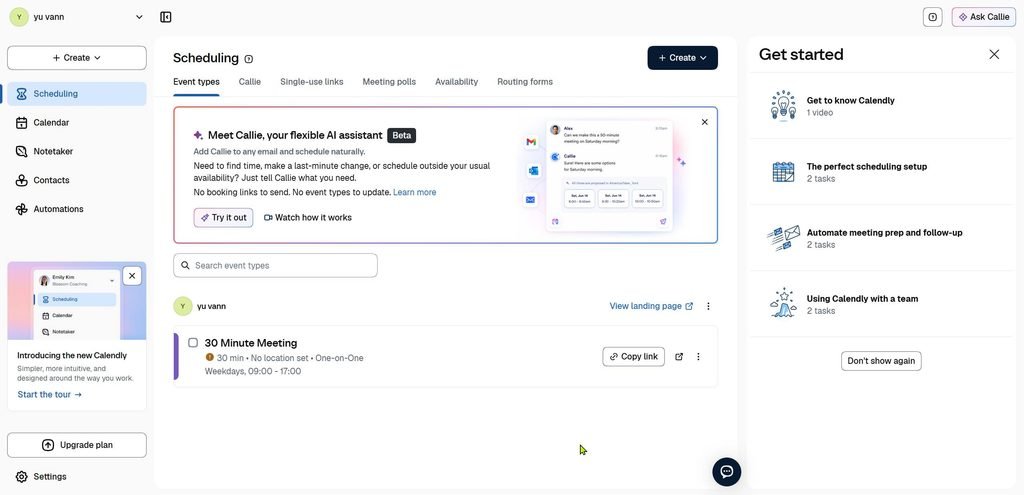
Calendly connects to Google, Outlook, Office 365, and Exchange. Once connected, it checks your calendar for busy times and adds new bookings automatically. If you connect multiple calendars, you choose which one is the “main” calendar for bookings. That’s important because you don’t want work meetings landing on your personal calendar by mistake.
Google Calendar is the hub for most people. You can share calendars, subscribe to others, and control exactly what people see — full event details or just free/busy. That granularity matters when you’re sharing with a coworker versus sharing with your entire team.
What to check: Does the tool support every calendar service you actually use? Can you connect multiple accounts? Can you choose which calendars block your availability and which don’t?
3. Scheduling Pages and Booking Links (For People Who Book Meetings)
If you schedule meetings with clients, candidates, or anyone outside your company, you need a booking page. This is a link you send that lets people pick a time that works for both of you. No back-and-forth emails. No “does Tuesday work?” chains.
Calendly is the big name here. You create event types (30-minute intro call, 60-minute consultation), set your availability, and share the link. People book themselves. Calendly checks your calendar, prevents double-booking, and sends confirmations automatically.
Doodle takes a different approach. Instead of a booking page, you create a poll. “Here are five possible times. Which work for you?” People vote, and Doodle picks the winner. Great for group scheduling when you’re coordinating more than two people.
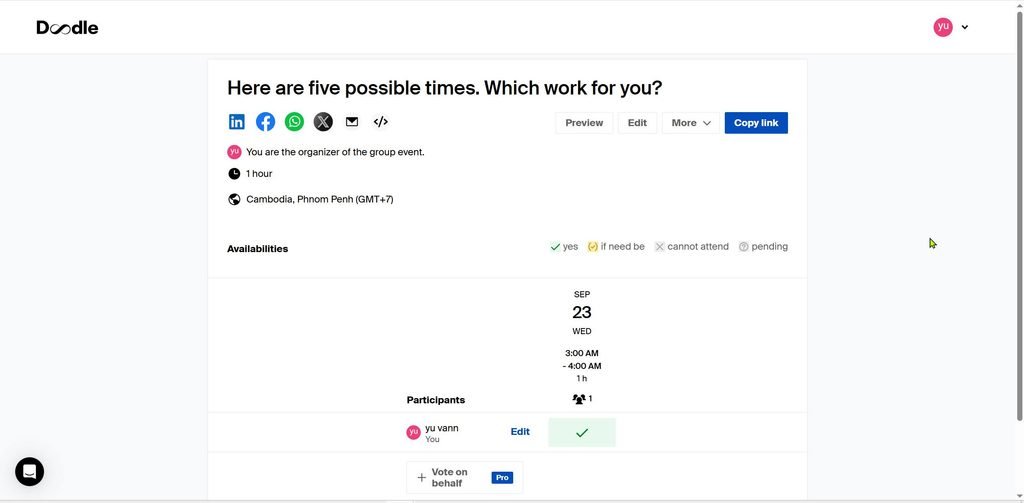
Create a poll with Doodle
Google Calendar has appointment schedules built in now. You set available hours, share the booking page, and people can schedule themselves. It requires a paid Google Workspace plan for some features, but the basics work on free accounts.
What to check: Do you need one-on-one booking or group polls? Does the tool sync with your calendar to prevent conflicts? Can you require payment or email verification before someone books?
4. AI Scheduling (The New Wave)
AI is creeping into every productivity tool. Calendar apps are no exception. The question is whether it actually helps or just adds noise.
Reclaim.ai is the most aggressive here. It connects to your task list (Todoist, Asana, Jira, Linear, Google Tasks) and automatically blocks time on your calendar to actually do those tasks. When a meeting gets added, Reclaim reschedules your focus blocks around it. It defends your deep work time without you having to manually shuffle things.
That’s genuinely useful if you have more tasks than hours. But there’s a catch. Reclaim’s scheduling quality depends entirely on how well you maintain your task list. If your priorities are wrong or your deadlines are outdated, the AI schedules the wrong things. Garbage in, garbage out.
Calendly has an AI assistant called Callie that coordinates scheduling over email. You CC callie@calendly.com on an email thread, and it handles the back-and-forth. There’s also an AI notetaker that records meetings and generates recaps with action items.
The New York Times Wirecutter tested AI scheduling apps and came away with a measured take. Their top pick was Sunsama, which uses AI for the busywork but still requires you to prioritize tasks manually. The reasoning: choosing what to work on is the part that actually helps you focus. Automating that choice removes the benefit.
What to check: Does the AI actually reschedule when conflicts happen? Can you override its decisions? Does it integrate with the tools where your tasks already live?
5. Task Integration (Your Calendar and To-Do List in One Place)
Some people live in their calendar. Some live in their task list. The best tools blur the line between both.
Fantastical shows events and dated tasks together in the same view. You can add tasks directly from the calendar, set due dates, and even attach locations for geofenced reminders. It connects to iCloud Reminders, Todoist, and Google Tasks.
Google Calendar lets you create tasks right in the calendar grid. Click a time slot, choose “Task” instead of “Event,” and it shows up as a checkbox on your schedule. The tasks sync with Google Tasks.
Reclaim.ai takes this further. It pulls tasks from Todoist, Asana, Linear, Jira, ClickUp, and Google Tasks, then schedules them into your calendar automatically. You don’t manually drag tasks around. Reclaim does it for you based on priority and deadlines.
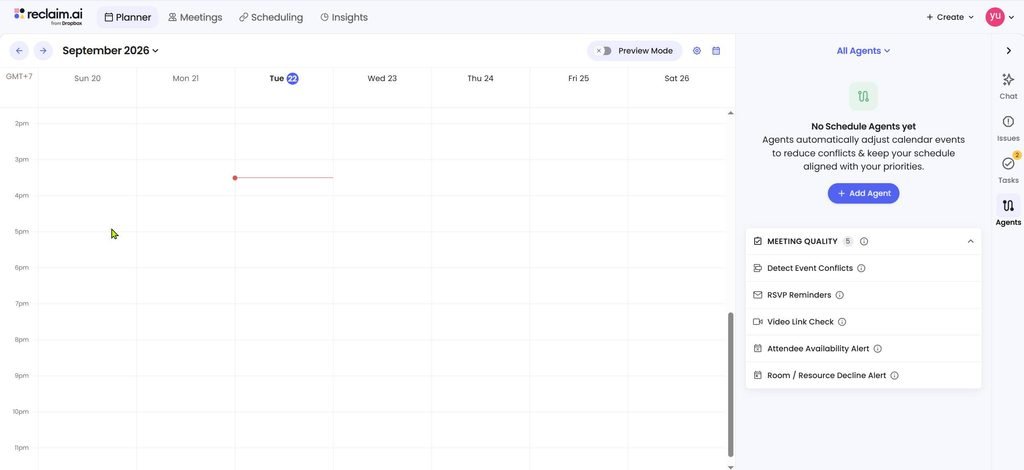
Why this matters: If your tasks and your calendar live in separate apps, you’re constantly context-switching. Seeing everything in one place makes it harder to overcommit and easier to actually plan your day.
6. Team Scheduling and Round Robin
Solo scheduling is one thing. Coordinating a team is another. You need features that distribute meetings fairly and respect everyone’s availability.
Calendly’s Teams plan includes round robin scheduling. Instead of one person handling all bookings, meetings get distributed automatically across team members. It’s perfect for sales teams or support desks where any available person can take the call.
Lead routing is another team feature. If someone books a meeting, Calendly can route them to the right sales rep based on HubSpot data, form responses, or Marketo rules. That level of automation saves manual triage work.
Doodle’s Team plan adds co-hosting, booking on behalf of others, and activity reports. You can see how many meetings each person is handling and whether workloads are balanced.
What to check: Does the tool support round robin? Can you set different availability for different team members? Can you book meetings on behalf of someone else?
7. Pricing (What You Get for Free vs Paid)
Free versions of calendar tools are surprisingly capable. You might not need to pay at all.
Doodle’s free plan gives you one group poll, one booking page, and one calendar connection. That’s enough for occasional scheduling. If you’re booking meetings every week, you’ll hit the limits fast. Pro unlocks unlimited everything for freelancers and solo professionals. Team adds admin controls and reporting.
Calendly’s free plan supports one event type and unlimited meetings. You can connect one calendar and embed the booking page on your website. That’s generous for someone just starting out. Paid plans add multiple event types, more calendar connections, and team features.
Fantastical is free with basic features. Premium (Flexibits Premium) unlocks Openings (schedule based on availability), Proposals (meeting polls), and video conferencing integrations. It’s around $7/month or $57/year, with a family plan available.
Reclaim.ai has a permanent free tier called Lite. It includes one week of scheduling range, basic time blocking, and up to two connected calendars. Paid plans unlock longer scheduling ranges and more customization.
What to check: What’s included in the free tier? Are you hitting limits that a paid plan would solve? Does the tool offer a free trial or permanent free version?
Quick Comparison Table
| Feature | Google Calendar | Fantastical | Calendly | Doodle | Reclaim.ai |
|---|---|---|---|---|---|
| Platforms | All major | Apple only | Web, mobile | Web, mobile | Web |
| Natural Language (NLP) | Basic | Best in class | Limited | None | Limited |
| Calendar Sync | Best in class | iCloud, Google, Exchange | Google, Outlook, Exchange | One connection free | Google, Outlook |
| Booking Pages | Yes (Workspace) | Proposals (paid) | Core feature | Core feature | Scheduling Links |
| Task Integration | Google Tasks | Todoist, Google Tasks | None | None | Todoist, Asana, Jira, Linear |
| AI Features | Limited | None | Callie AI, Notetaker | AI descriptions (Team) | Auto-scheduling, focus defense |
| Free Plan Limits | Fully free | Basic features | 1 event type | 1 poll, 1 booking page | 1 week scheduling range |
| Price (paid) | Free | Subscription | Varies by plan | $11/user/month annually | From $12/seat/month |
| Best For | Everyone | Apple power users | Client scheduling | Group polls | Task-focused time blocking |
8. Integrations (Does It Play With Your Other Tools?)
A calendar that doesn’t connect to your email, video conferencing, or CRM is an island. You want integrations.
Calendly integrates with Zoom, Google Meet, Microsoft Teams, and Webex for video calls. It connects to Stripe and PayPal for paid bookings. Salesforce, HubSpot, Marketo, and Pardot for lead routing. Zapier for everything else.
Doodle supports Zoom, Microsoft Teams, and Webex on paid plans. It has a Stripe integration for getting paid, and AI-generated meeting descriptions on the Team plan. Zapier connects Doodle to 1,500+ other web services.
Fantastical adds Zoom, Google Meet, Webex, and Microsoft Teams calls to events. It also integrates with Todoist and Google Tasks for task management.
Reclaim.ai connects to your task tools (Todoist, Asana, Jira, Linear, ClickUp) and syncs with Slack for status updates. When you’re in a focus block, your Slack status can update automatically to let people know you’re heads-down.
What to check: Does it connect to your video conferencing tool? Your CRM? Your task app? If you use Zapier, is there an integration?
9. Time Zone Support (For Remote Workers)
If you work with people in different cities, time zone support is non-negotiable. You need to see your schedule in their time, and they need to see yours.
Google Calendar handles time zones well. You can set your working hours and location, view how much time you spend in meetings, and see events in different zones. When you create an event, you can specify the time zone for each attendee.
Fantastical supports floating time zones and lets you favorite specific time zones for quick reference. When you travel, events adjust automatically.
What to check: Does the tool show your schedule in multiple time zones? Can you set recurring events that respect daylight saving changes? Does it warn you when you’re scheduling something at a weird hour for someone else?
10. Data Export and Ownership
This one rarely gets mentioned. It should.
If you spend years building your calendar system and the app shuts down or changes its pricing, can you take your data with you? Google Calendar lets you export your calendars as ICS files or ZIP archives. You can import them elsewhere. Most established tools offer similar export options.
Check before you commit. Your calendar is your record of where your time went. You should be able to leave whenever you want.
So What Should You Actually Do?
There’s no single best calendar tool. It depends on how you work.
If you’re an Apple user who wants the fastest way to add events and tasks, Fantastical is hard to beat. If you schedule meetings with clients, Calendly saves you hours every week. If you’re coordinating groups, Doodle is simpler than email chains. If you struggle to find time for actual work, Reclaim.ai might be worth trying.
Start with the free versions. Use them for a week. Pay attention to which one you actually open without thinking about it. That’s the one worth paying for.
If you’re buying through an affiliate link, test the free tier first. Don’t subscribe to a year of something you haven’t tried with real meetings. You’ll thank yourself later.