
AI tools can take over the repetitive parts of your workday, like meeting notes, email drafts, scheduling, and research, so you can spend your energy on work that needs your judgment. This guide explains what these tools do, which ones are worth trying, and how to build them into your routine step by step.
Who this guide is for
Office workers, freelancers, managers, and students who want to save time without learning a complicated new system.
What you will get
A grouped tool list, free options, a step-by-step setup, copy-and-paste prompts, and a clear view of the risks.
Most of us lose hours every week to small tasks: sorting email, writing up meetings, formatting reports, and hunting for information. One Adecco Group survey estimated that AI saves workers an average of one hour each day. If you are new to the topic, start with our explainer on how AI tools work, then come back here to put them to use.
What Are AI Tools for Productivity?
AI tools for productivity are apps that use artificial intelligence to help you finish work faster or with less effort. Most are built on large language models, which understand and generate text, so you can give instructions in plain English instead of clicking through menus.
In practice, they fall into a few groups: assistants that answer questions and draft content, meeting tools that record and summarize, planning tools that organize tasks and calendars, and automation tools that connect your apps so work moves on its own. Our guide to the types of AI tools goes deeper on each category.
Does AI Actually Make Work More Efficient?
Often, yes, but the gains depend on how you use it. A study from Slack’s Workforce Lab reported that people who use AI daily described themselves as far more productive and more satisfied with their jobs than people who do not. Time saved is the most common benefit, especially on routine tasks. Research cited by HR Magazine found that the average office worker spends hundreds of hours a year on administrative work, which is exactly where AI helps most.
Efficiency is not automatic, though. A popular guideline, sometimes called the 70/30 rule, suggests letting AI handle roughly 70 percent of repetitive, data-heavy work while you keep the 30 percent that needs creativity, judgment, and decisions. If you use AI for tasks you do not understand, you can end up spending more time fixing its mistakes than you saved.
Good to know: You may also hear about the “10/20/70 rule” for AI, often attributed to Boston Consulting Group. It says about 10 percent of AI success comes from algorithms, 20 percent from technology and data, and 70 percent from people and processes. The message is the same: the tool matters less than how you work with it.

Best AI Tools for Productivity
There are hundreds of options, so it helps to pick by task. The table below matches common jobs to a strong first choice and a backup. Pricing and features change often, so check each tool’s site before you commit.
| Task | Best Tool | Why It Fits | Backup Option |
|---|---|---|---|
| General writing and brainstorming | ChatGPT | Flexible for drafting, summarizing, and analysis | Claude |
| Long documents and careful editing | Claude | Handles long text and nuanced rewrites well | Gemini |
| Research with sources | Perplexity | Shows citations so you can verify answers | NotebookLM |
| Meeting notes | Otter.ai | Transcripts, summaries, and action items | Fireflies |
| Team projects and tasks | ClickUp | AI summaries and task organization in one hub | Asana |
| Calendar and scheduling | Reclaim | Protects focus time and auto-schedules tasks | Motion |
| Slides and visuals | Gamma | Builds a draft deck from a short prompt | Canva |
| Connecting apps and automation | Zapier | Links thousands of apps without code | Make |
If you are choosing an AI assistant, here is how four widely used options compare. For a closer look at one of them, read our ChatGPT review.
| Feature | ChatGPT | Claude | Gemini | Perplexity |
|---|---|---|---|---|
| Strength | Versatile all-rounder | Natural writing and long documents | Works inside Google apps | Sourced answers |
| Weakness | Can state wrong facts confidently | Can be overly cautious | Best inside the Google ecosystem | Less suited to long drafting |
| Best for | Everyday tasks and ideas | Editing and analysis | Gmail, Docs, and Sheets users | Fast, cited research |
| Pricing | Free and paid plans | Free and paid plans | Free and paid plans | Free and paid plans |
Free AI Tools for Office Work and Students
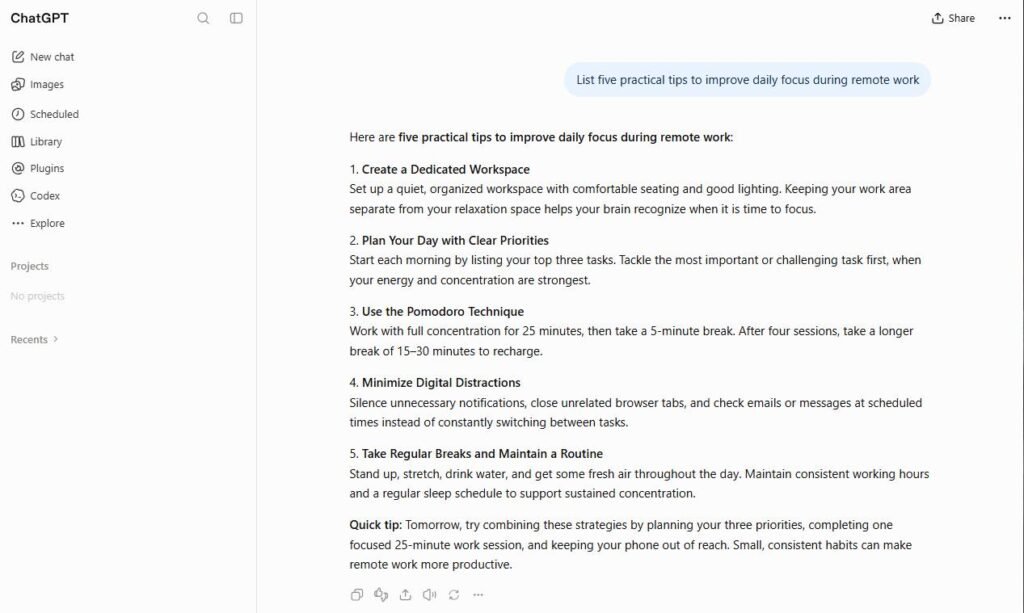
You do not need a paid plan to get real value. Many of the tools above offer a free tier that is enough for light daily use. For a wider list aimed at newcomers, see our roundup of free AI tools for beginners.
For office work
Free versions of ChatGPT, Claude, and Gemini can draft emails, summarize reports, and clean up spreadsheet formulas. Hemingway Editor has a free version that highlights hard-to-read sentences, and Canva offers free design tools for quick graphics and presentations.
For students
Students get a lot from NotebookLM, which lets you upload your own notes and readings and ask questions about them, and from Perplexity for finding sources. Use AI to explain, quiz, and organize, not to write assignments for you. Your school’s rules on AI use come first.
What free plans usually give you
- Access to the core features, enough to test the tool properly
- Enough usage for light, daily tasks
- No commitment while you work out what suits you
What you usually give up
- Usage limits that can pause you mid-task
- Access to the newest or most powerful models
- Advanced features such as integrations and team sharing
Free tiers also differ in how they treat your data, and some may use your conversations to improve their models. Check each tool’s privacy settings before you paste in anything sensitive.
AI Tools for Meetings and Note-Taking
Meetings are one of the easiest places to win back time. Tools like Otter.ai and Fireflies join your calls, transcribe them, and produce a summary with action items. Granola takes a different approach: it captures audio on your device and combines it with the notes you type, so there is no bot in the call.
Whichever you choose, always tell participants you are recording, and read the summary before you send it. Speaker labels and task owners are the details these tools most often get wrong. For longer notes and research, Notion AI can summarize and organize pages inside your workspace.
AI Tools for Writing, Email, and Content
Writing is where most people start with AI. Assistants like ChatGPT and Claude are good at first drafts, rewrites, and changing tone. Dedicated editors such as Grammarly catch grammar and clarity problems wherever you type, including in your inbox.
For email, ask an assistant to summarize a long thread, then draft a reply from your bullet points. For content, use AI to outline, brainstorm angles, and tighten your own writing. Many experienced writers prefer to write the first draft themselves and let AI edit it, because AI-written text often sounds generic. Whatever you do, add your own examples and voice before you publish.

AI Tools for Task Management and Scheduling
Project tools now include AI that summarizes threads, flags blockers, and suggests next steps. ClickUp and Asana are popular for teams. For your personal calendar, Reclaim and Motion automatically place tasks and focus blocks around your meetings and move them when plans change.
Quick tip: Do not automate every task. Ask three questions first: how structured is the task, how risky are mistakes, and how much human judgment is needed? Harvard Business School Online recommends full automation for frequent, low-risk tasks and keeping humans involved when the stakes are high.

AI Tools for Research and Automation
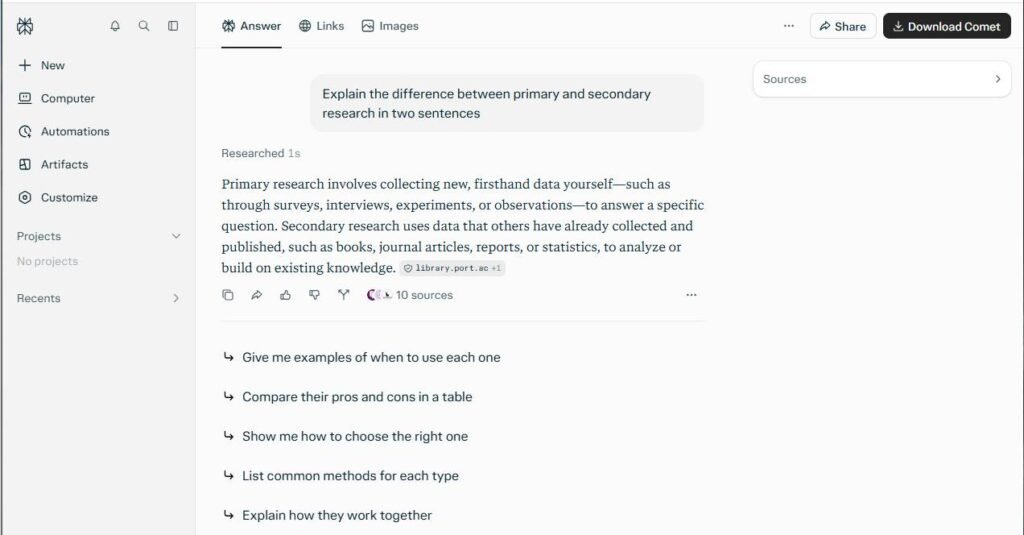
For research, Perplexity searches the web and cites its sources, which makes it easier to check what it tells you. NotebookLM works the other way around: it answers only from the documents you upload, which reduces made-up answers.
Automation tools such as Zapier connect your apps so one event triggers the next. For example, a new form response can be summarized by AI, added to a spreadsheet, and posted to your team chat, all without you touching it. Start with one simple automation, confirm it works, and then expand.
How to Use AI to Be More Productive at Work: Step by Step
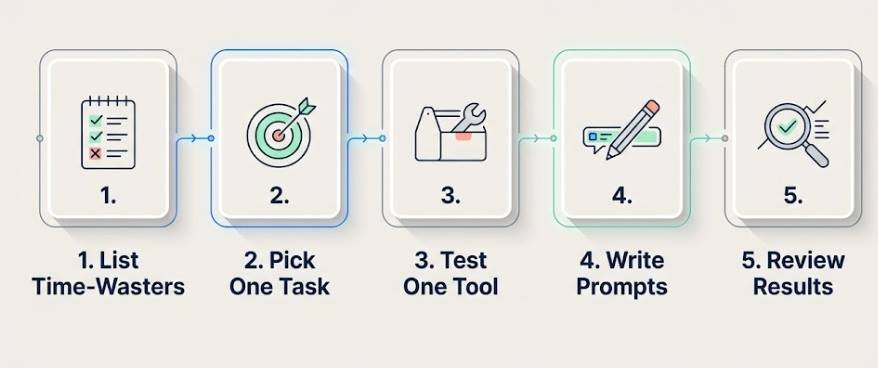
Buying a tool is easy. Changing how you work is the hard part. Follow this simple process to get results quickly without overwhelming yourself.
- List your time-wasters. Track one week of work and note tasks that are repetitive, slow, or tedious, such as email sorting, meeting notes, and weekly reports.
- Pick one task, not ten. Choose the task that costs you the most time and carries the lowest risk if the AI gets something wrong.
- Choose one tool and test it. Use a free plan for a week. Our guide on how to choose the right AI tools can help you decide.
- Write clear prompts. Give the AI a role, the context, the goal, and the format you want. Better inputs lead to better outputs.
- Review, then measure. Check every output, compare the time you spent with your old method, and keep only what actually saves time.
Prompting is the skill that matters most. If you want to go further after the basics, read our tips on how to get the most out of AI tools.
Real Workflow Examples with Copy-and-Paste Prompts
Replace the text in [brackets] with your own details. Always read the result before you use it.
| Workflow | Prompt to Copy |
|---|---|
| Summarize a long email thread | Summarize this email thread in five bullet points. List any decisions made and any questions I still need to answer: [paste thread] |
| Draft a professional reply | Write a polite, concise reply to this email. My key points are: [your points]. Keep the tone friendly and professional: [paste email] |
| Turn meeting notes into actions | From these meeting notes, list the action items in a table with columns for task, owner, and deadline. Flag anything unclear: [paste notes] |
| Plan your day | Here are my tasks and meetings for today: [list]. Suggest a realistic schedule with focus blocks and breaks, and tell me what to postpone. |
| Prepare for a meeting | I am meeting [person or team] about [topic]. Give me a short agenda, five questions to ask, and three risks to watch for. |
| Simplify a report | Rewrite this report summary for a non-technical audience in under 150 words. Keep the key numbers and the main recommendation: [paste text] |
Follow-up trick: If the first answer is not right, do not start over. Reply with what to change, such as “shorter,” “more formal,” or “add a deadline for each item.” Refining is usually faster than rewriting the prompt.
How to Choose the Right AI Tool for Your Work
Start with the problem, not the tool. Ask whether the tool fits the apps you already use, whether it is easy to learn, whether its pricing is clear, and how it handles your data. Many people end up with a pile of unused subscriptions, so begin with one tool and add another only when you hit a clear limit. Our full selection framework walks through this process in detail.
Risks and Limits of AI at Work: Privacy, Accuracy, and Over-Reliance
AI is helpful, but it makes mistakes. In a Zapier survey of enterprise AI users, more than half said AI research and fact-finding often needed fixing afterward. Treat AI as a fast assistant, not an authority.
Safe habits
- Check facts, numbers, and quotes against a reliable source
- Use only company-approved tools for work data
- Read privacy and data-training settings before you start
- Keep a human in the loop for important decisions
Habits to avoid
- Pasting passwords, client data, or confidential files into public tools
- Sending AI output without reading it
- Using AI for tasks you do not understand well enough to check
- Letting AI replace your own thinking and learning
Over-reliance is the quieter risk. If you stop practicing writing, analysis, or problem solving, those skills fade. Use AI to speed up the routine parts and keep doing the thinking yourself. Bias is another concern, especially for hiring and performance decisions, as Harvard Business School Online notes when it discusses oversight and ethical considerations.
Which Jobs Will AI Change?
Nobody can say for certain which jobs will disappear, and anyone who gives you a confident list is guessing. What is clearer is which tasks change first: repetitive, structured work such as data entry, scheduling, routine reporting, and first-draft writing.
Most roles are more likely to shift than vanish. Jobs that rely on judgment, relationships, creativity, and accountability tend to change by gaining AI helpers rather than being replaced by them. The practical response is to learn the tools in your field now, so you become the person who uses them well.
Frequently Asked Questions
What is the best AI to use for productivity?
There is no single best option. ChatGPT, Claude, and Gemini are strong general assistants, Perplexity is good for sourced research, and Otter.ai is good for meetings. Pick based on the task that wastes most of your time.
How do I use AI to make my work more efficient?
Start with one repetitive task, test one tool, write clear prompts, and review the results. See the step-by-step section above, and our guide to using AI tools like a power user.
Are there free AI tools for office work?
Yes. Free plans of ChatGPT, Claude, Gemini, Perplexity, NotebookLM, Canva, and Hemingway Editor cover many everyday office tasks. Free plans have limits, so upgrade only if you keep hitting them.
What is the 10/20/70 rule for AI?
It is a framework often attributed to Boston Consulting Group. It suggests that about 10 percent of AI success depends on algorithms, 20 percent on technology and data, and 70 percent on people and processes.
How do I start using AI as a beginner?
Open a free assistant, give it a small real task such as summarizing an email, and compare the result with doing it yourself. Our list of AI tools for beginners has easy ways to start.
Is it safe to put work data into AI tools?
It depends on the tool and your employer’s rules. Avoid sharing confidential or personal data in public tools, check how the provider uses your data, and follow your company’s AI policy.
Will AI replace my job?
It is more likely to change parts of your job than replace it outright, particularly repetitive tasks. Learning to use AI well is the best way to stay valuable.
Final Thoughts
AI tools for productivity work best when you use them on specific, repetitive tasks and keep your own judgment in charge. Pick one task, try one free tool, measure the time you save, and build from there. To explore more options, browse our guide to the types of AI tools, and pick one tip from this guide to try today.