
Why use an AI assistant at work? Because your inbox never stops, and neither do the same few admin jobs: read the thread, write the reply, type up the notes, send the follow-up. An AI assistant can take a big bite out of that list. Here are 10 real examples, with prompts you can paste today.
Quick answer: Why use an AI assistant at work? To cut repetitive admin. Think email summaries, first-draft replies, and meeting notes turned into action items. Start with one task, time it, and keep it only if it saves you real minutes.
Most workdays don’t fall apart because of hard work. They fall apart because of small work. One reply here. One summary there. Then a status update, then another thread you need to catch up on. It adds up fast, and none of it feels like “real” work.
This guide answers one question: why use an AI assistant at work? It’s written for busy office employees who live in their inbox. No jargon. No hype. You’ll see what an AI assistant is, where it saves time, where it doesn’t, and how to use it safely. We also reviewed the research, including data that disagrees with the “AI saves hours” story, and we link every source so you can check it yourself. You’ll get the honest version.
What Is an AI Assistant (and How Is It Different From a Chatbot)?
An AI assistant is software that helps you finish tasks when you ask. You type or speak a request. It writes, summarizes, sorts, or looks things up for you. Jotform’s explainer describes assistants as tools that handle simple admin jobs like scheduling and pulling up information.
A chatbot is a different animal. Classic chatbots mostly follow a script. Think of the box on a bank website that answers “What are your opening hours?” It talks. It doesn’t do much else. Our guide on what an AI chatbot is goes deeper. One 2026 comparison splits the three terms like this:
- Chatbot: mostly talks. It answers set questions, often from a script.
- AI assistant: helps you complete tasks when you ask. It writes, summarizes, sorts, and can connect to tools like your calendar or files.
- AI agent: plans and acts across several steps with little supervision.
The line is blurry now. ChatGPT, Claude, Gemini, and Copilot all look like chatbots. At work, you use them as assistants. That’s how we treat them here. You ask, they draft, you decide.
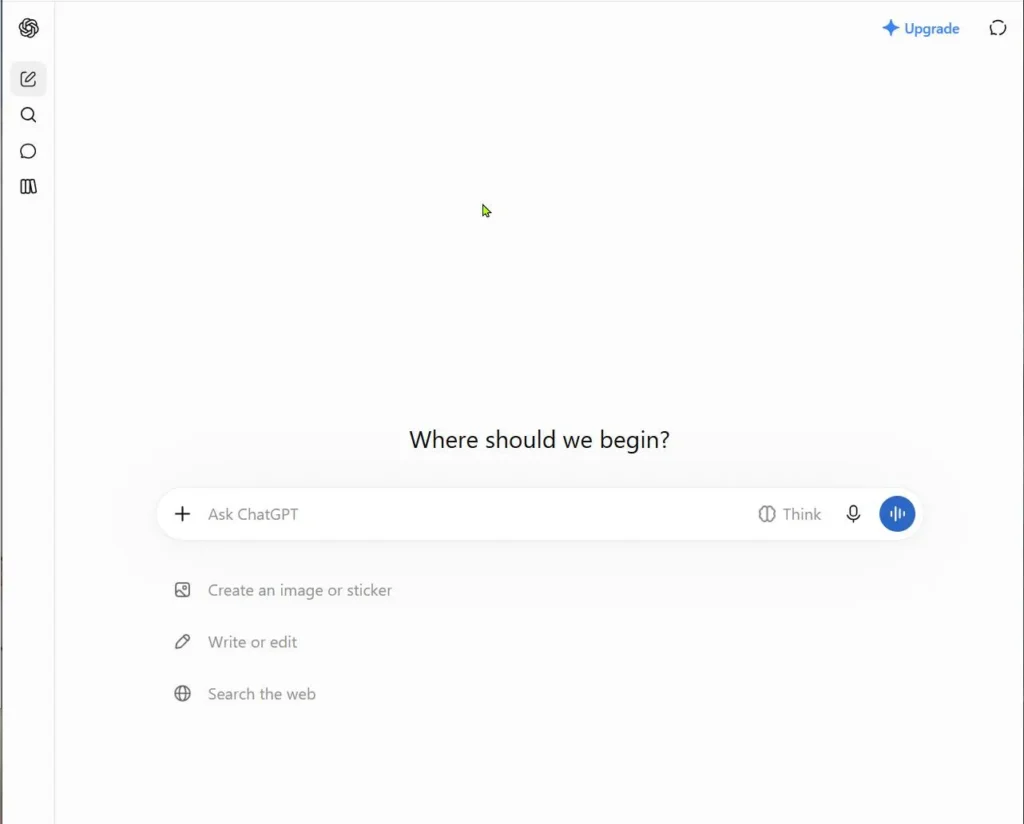
So what can an assistant actually do for an office worker? SHRM’s workplace guide groups everyday use into three buckets:
- Drafting and summarizing: emails, memos, meeting notes, long documents.
- Searching and organizing: finding the right info across scattered files and messages.
- Analyzing data: spotting patterns and answering questions about numbers.
For an inbox-heavy job, the first bucket is where you’ll win most.
Why Use an AI Assistant at Work? The Admin Hours You’re Losing Every Week
If you’re asking “why use an AI assistant at work?” start with email. Email is the biggest time sink for many people. In a ZeroBounce survey reported in 2025, 35% of workers said they spend two to five hours a day in their inbox. An older Adobe study found workers spent about 209 minutes a day on work email (that was 2019).
Surveys vary a lot, so don’t trust any single number. Track your own week. But if email and admin eat a big slice of your day, that’s where an assistant helps. Here’s where the hours usually go:
- Reading long threads just to find the one decision.
- Writing the same kinds of replies again and again.
- Typing up meeting notes and action items.
- Scheduling, rescheduling, and polite nudges.
- Weekly status updates and routine reports.
AI is good at exactly this kind of work. Founderz points out that many office tasks just turn information from one format into another: a meeting into notes, a pile of data into a summary, an idea into a draft. So, why use an AI assistant at work? It handles the first draft. You handle the judgment.
There’s a people benefit too. SHRM notes that handing off routine jobs like summarizing notes and drafting standard messages leaves more room for creative and relationship-driven work, which can ease burnout. Want more systems like this? Read our guide to AI tools for productivity or browse our productivity hub.
Why Use an AI Assistant at Work? 10 Real Examples That Save Hours
Still asking “why use an AI assistant at work?” Each example below has a rough before-and-after time and a prompt you can copy. Swap anything in [brackets] for your own details. And remove names, numbers, and secrets before you paste anything (more on that in the privacy section).
About the times: The before-and-after numbers are rough planning estimates, not lab results. Your inbox, your tool, and your job will change them. Time yourself for a week to get your real numbers.
1. Summarize long email threads
You come back from a day off to a 40-message thread. Instead of scrolling, paste it in and ask for the point.
Before: about 15 minutes. After: about 2 minutes.
Prompt: “Summarize this email thread in 5 bullets. Then list what I need to do and by when. [paste thread]”
2. Draft replies in your own tone
Use this to write emails faster. Give the assistant your key points. It gives you a clean first draft. You fix the details and hit send. For more ways to speed up your writing, see our AI writing guides.
Before: about 10 minutes. After: about 3 minutes.
Prompt: “Write a reply to this email. Tone: friendly and direct. Under 100 words. Cover these points: [your points]. [paste email]”
3. Triage your inbox
Not every email needs you today. Ask the assistant to sort your list by urgency. Paste only subject lines and general descriptions, never private details. If your company has an approved assistant built into your email, that’s even better.
Before: about 30 minutes. After: about 10 minutes.
Prompt: “Here are my email subject lines. Sort them into: reply today, reply this week, no reply needed. Give one line of reasoning for each.”
4. Turn meetings into notes and action items
This is one of the clearest wins, and a strong answer to “why use an AI assistant at work?” Founderz says an hour-long meeting can mean 20 to 30 minutes of manual note-taking afterward. A transcription tool or your meeting app’s built-in notes can do the first pass. You just check that the decisions are right.
Before: about 25 minutes. After: about 5 minutes.
Prompt: “Turn this meeting transcript into three parts: key decisions, action items with owners and dates, and open questions.”
5. Write the follow-up email
Notes done? The follow-up is next. Feed the action items back in and get a ready-to-send message. SHRM lists follow-up emails and action-item extraction among the things AI meeting assistants can do.
Before: about 10 minutes. After: about 2 minutes.
Prompt: “Write a follow-up email to the team from these notes. Under 120 words. Put the action items in a short list.”
6. Handle scheduling and reschedule messages
A plain chatbot can’t see your calendar. But it can write the awkward “can we move this?” message in seconds. Assistants that connect to your calendar can go a step further and suggest times.
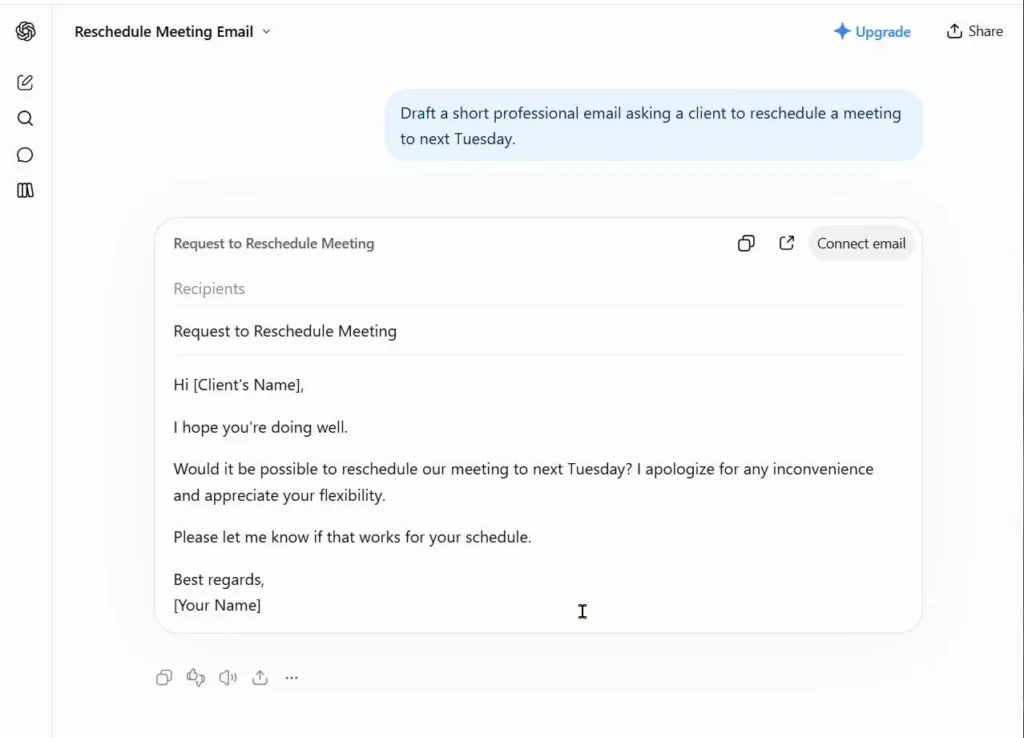
Before: about 10 minutes. After: about 3 minutes.
Prompt: “Write three short, polite options asking [name] to move our meeting from [day] to [day]. No fluff.”
7. Fix the tone before you hit send
Annoyed at a coworker? Write the honest draft, then let the assistant calm it down. It also works the other way. Use it to make a stiff message sound more human.
Before: about 10 minutes of rewriting. After: about 2 minutes.
Prompt: “Rewrite this message so it sounds calm and professional. Keep my meaning. Don’t add new claims. [paste draft]”
8. Build your weekly status update
Keep a running list of notes during the week. On Friday, paste them in and ask for a tidy update. This one pays off every single week.
Before: about 45 minutes. After: about 12 minutes.
Prompt: “Turn these notes into a weekly status update with four parts: done, in progress, blocked, next week. Max 150 words.”
9. Clean up messy data and spreadsheet formulas
You don’t need to be a spreadsheet wizard. Describe what you want, and the assistant can suggest the formula or tidy the table. Always test the formula on a few rows you can check by hand.
Before: about 20 minutes. After: about 5 minutes.
Prompt: “Turn this messy list into a clean table with the columns [column names]. Then give me a spreadsheet formula to total column C.”
10. Prep a one-page brief before a call
Got a call in 20 minutes with someone new? Ask for a quick brief. This works best with an assistant that can search the web. Verify any fact you plan to repeat out loud.
Before: about 30 minutes. After: about 8 minutes.
Prompt: “I have a call about [topic] with [company type] in 20 minutes. Give me a one-page brief: background, 5 smart questions, and possible risks. Tell me which facts I should double-check.”
How Much Time Can You Really Save? What the Data Says
Here’s the honest part of the “why use an AI assistant at work?” question. The data is mixed.
On the plus side, specific tasks do get faster. Founderz cites Microsoft estimates that jobs which once took 20 to 30 minutes can drop to under 5 minutes when AI steps are chained together. Microsoft’s own benefits page says AI tools cut routine work by summarizing documents and meetings and drafting first versions. (Keep in mind both are vendor-friendly sources.)
On the other side, a November 2026 CIO report on ActivTrak research found that AI users were working up to 90 minutes longer each day. Heavy AI users also had shorter focus sessions and switched apps more often. ActivTrak’s earlier report, though, found that overall workdays got slightly shorter. The newer ActivTrak findings are worth reading too. The two studies used different time spans and sample sizes, so they aren’t a clean comparison.
So what do you do with that? Three takeaways:
- Savings are real on narrow tasks. Email summaries and meeting notes are the safest bets.
- App-hopping eats the gains. CIO reports that people using AI built into their apps switched about 0.6 times an hour. People using web-based AI tools switched between 1.7 and 4.2 times an hour.
- Saved time can vanish. If faster work just means more work, you end up no better off.
Don’t take anyone’s word for how many hours you’ll save, including ours. Measure your own week. We show you how in the “Start Small” section below.
Prompts You Can Copy and Paste Today
The examples above gave you task-specific prompts. Here’s the pattern behind them, plus five extra prompts that work almost anywhere. A good prompt has four parts:
- Task: what you want done (“Write a reply”).
- Context: who it’s for and why (“to a client who is late paying”).
- Tone: how it should sound (“firm but kind”).
- Format: length and shape (“under 80 words, no bullets”).
Now try these five:
The “ask me first” prompt: “I need to [task]. Before you start, ask me up to 5 questions you need answered to do this well.”
The polite “no”: “Write a short, kind reply that declines this request. Offer [alternative] instead. Under 70 words.”
The shortener: “Cut this to 3 bullets. Keep every date and number exactly as written.”
The second pair of eyes: “Review my draft. Point out anything unclear, any risky wording, and any missing info. Don’t rewrite it.”
The template maker: “Turn this email into a reusable template with [brackets] where details change.”
Save the ones you like in a notes app. The more you reuse a good prompt, the more time you save. Want to get better at this? Our learn hub has beginner-friendly guides.
When You Should NOT Use an AI Assistant
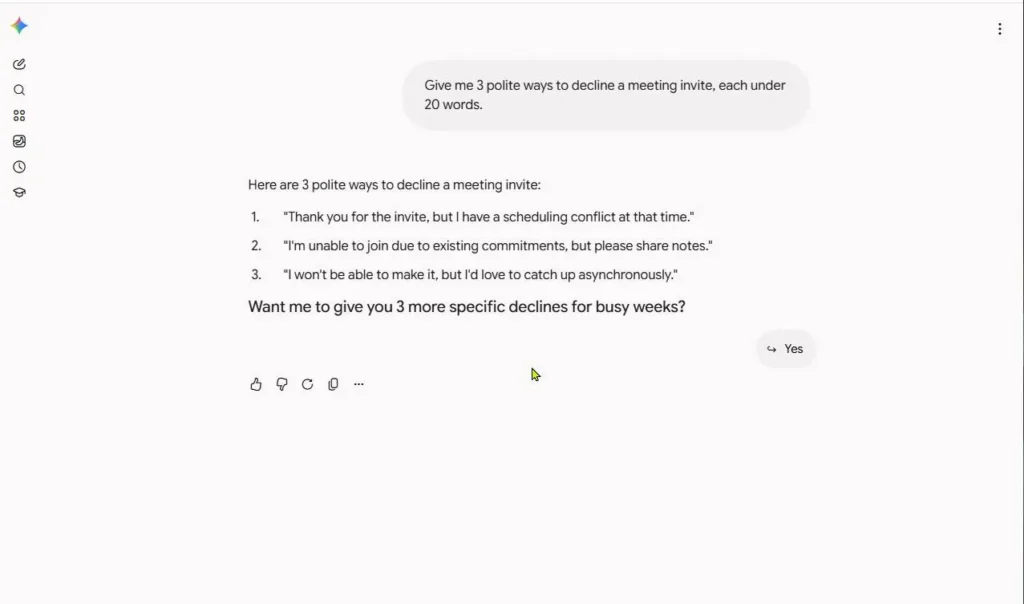
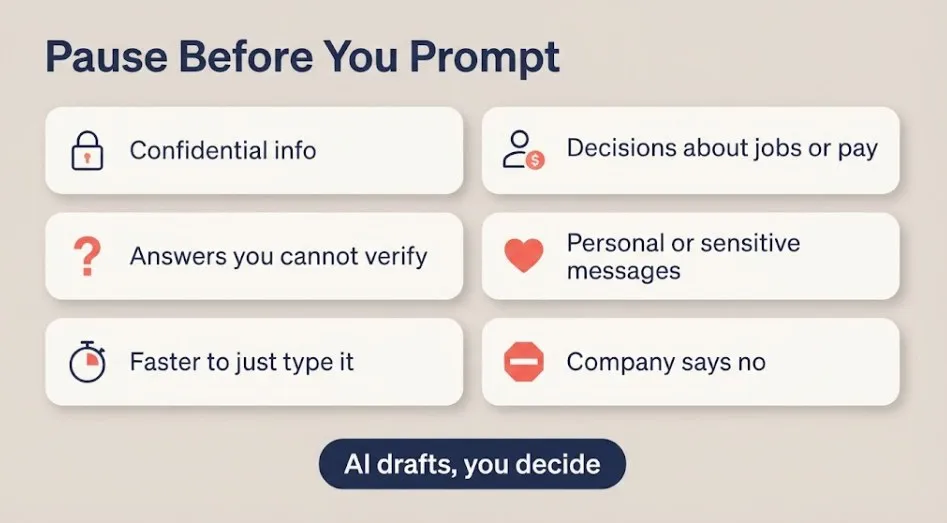
The question “why use an AI assistant at work?” has a flip side: knowing when not to. An assistant is a tool, not a brain. Skip it in these cases:
- When the info is confidential. Customer records, contracts, passwords, and health data stay out of public tools.
- When the decision affects someone’s job, pay, or rights. SHRM says people should stay in the loop for high-impact decisions, and warns that AI can repeat bias from old data.
- When you can’t check the answer. AI can sound confident and still be wrong. If you can’t verify it, don’t send it.
- When the message is personal or sensitive. Condolences, tough feedback, and apologies should sound like you.
- When it’s faster to just do it. A two-line reply takes less time to type than to prompt.
- When your company says no. Follow the rules, even if a tool is tempting.
Our rule of thumb: AI drafts, you decide. You are the one whose name is on the email.
Is It Okay to Use AI at Work? Policy and Privacy Basics
Short answer: usually yes, if your company allows it and you use it safely. SHRM says many employees already use AI in their personal lives and expect it at work. It also says the companies that benefit most pair AI with clear guardrails, training, and human oversight.
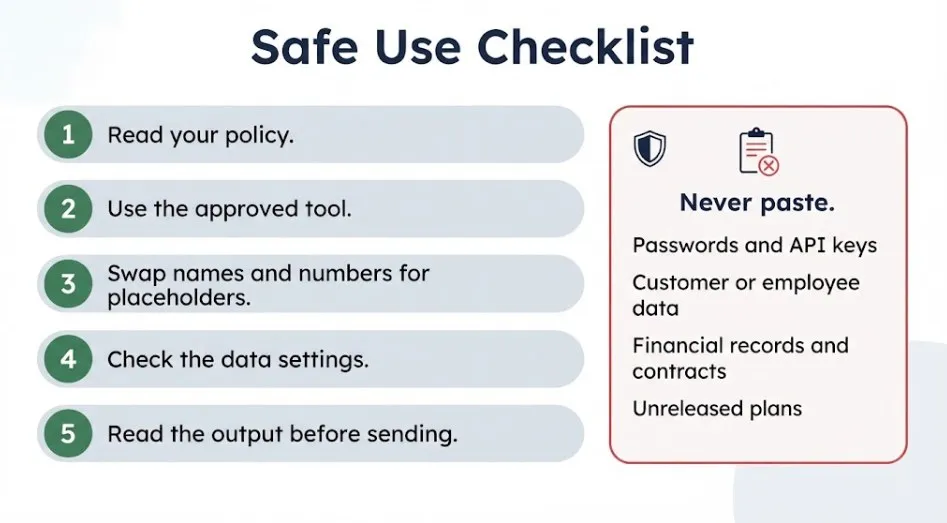
The risk is real, though. A TELUS Digital survey found that 57% of enterprise workers using AI had entered sensitive company data, and 68% used personal accounts instead of company-approved ones. A Zapier survey of 1,005 US workers at large companies found that 89% had entered company data into AI. Don’t be part of those numbers. Here’s a simple routine:
- Read your policy. No policy? Ask your manager or IT team, and get the answer in writing.
- Use the company-approved tool when one exists. Avoid personal accounts for work data.
- Strip out the sensitive bits. Replace names, numbers, and account details with placeholders.
- Check the tool’s data settings. Founderz advises reviewing whether your inputs are used to train models.
- Read the output before you send it. People remain accountable for what gets shared.
Usually fine (after removing names)
- Your own draft text
- Public information
- Generic meeting notes
- Template wording
Never paste
- Passwords, logins, API keys
- Customer or employee personal data
- Financial records and contracts
- Unreleased plans and strategy
This is general guidance, not legal or IT-security advice. Your company’s rules come first. We last reviewed this guide in November 2026 and linked each statistic to its source. See our disclaimer for more, or contact us if you spot an outdated detail.
How to Avoid AI Creating Extra Work for You
Here’s a trap. AI saves you 30 minutes, so your boss hands you 30 more minutes of work. SHRM warns that gains aren’t automatic. Without a rethink of how work is done, people may simply be expected to produce more in the same time, which adds pressure. CIO’s reporting on ActivTrak data adds another problem: constant app-switching chops up your focus time.
Use these habits to keep AI helping instead of hurting:
- Pick one tool. Three assistants means three tabs and three logins.
- Prefer built-in AI inside the apps you already use, if your company offers it. Less switching, less friction.
- Cap your prompting. If you’re on your third rewrite, stop and write it yourself.
- Save good prompts. Reuse beats reinventing.
- Always proofread. Fixing a wrong AI email costs more than writing it yourself.
- Protect the time you save. Use it for focused work, not just more email.
That last one matters most. The goal isn’t to cram more tasks into every hour. It’s to get your attention back for the work that needs you. For more habits like this, see how to get the most out of AI tools.
Best AI Assistants for Office Workers: Free vs Paid
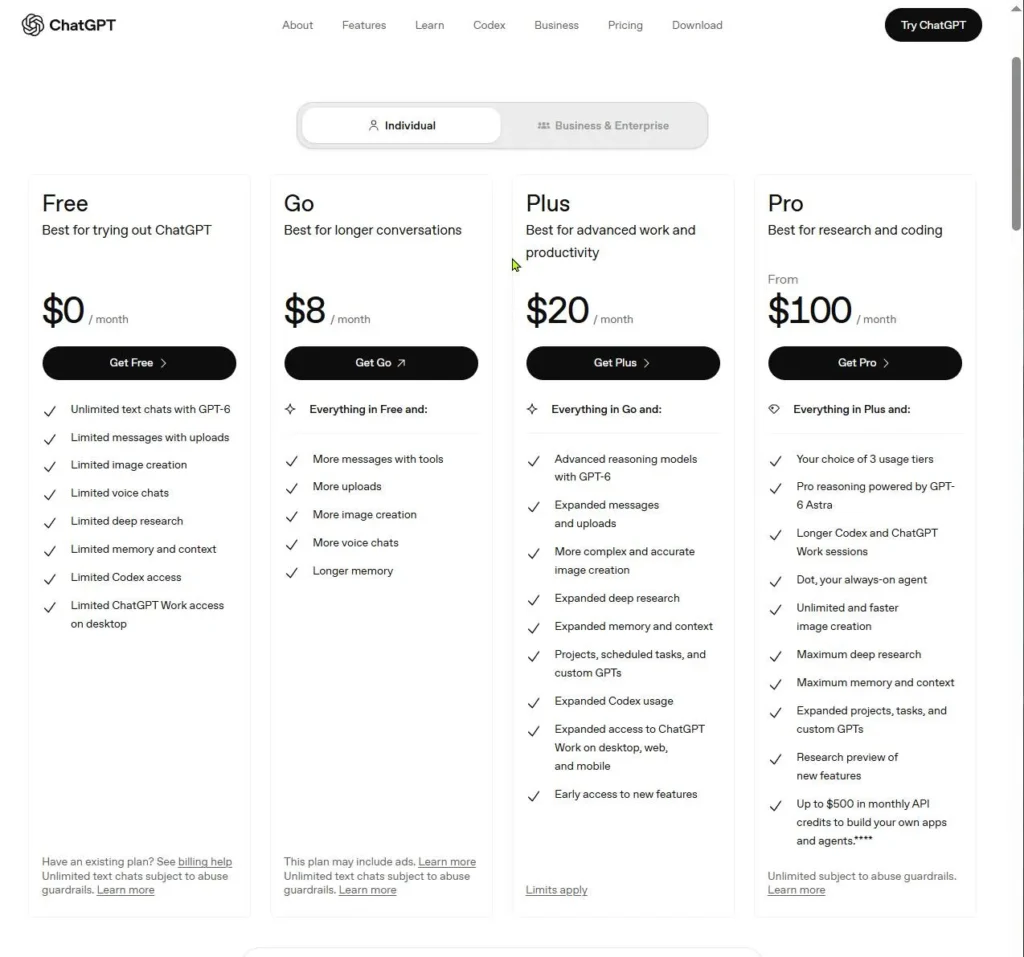
Why use an AI assistant at work if it costs money? You don’t need to pay to start. Every assistant below has a free option. Prices were checked in November 2026 in US dollars, and they change often. Always confirm on the official page before you pay.
| Assistant | Free plan | Paid (approx.) | Best for |
|---|---|---|---|
| ChatGPT | Yes, with limits on messages and uploads | Go about $8/mo, Plus about $20/mo | All-round drafting and summaries |
| Claude | Yes, with usage caps that reset | Pro about $20/mo ($17 on annual billing) | Long documents and careful writing |
| Gemini | Yes | Google AI Pro about $19.99/mo (varies by country) | People who live in Gmail and Google Docs |
| Microsoft Copilot | Yes (the free app) | Work plans about $18 to $30 per user/mo, bought by your company | Outlook, Teams, Word, and Excel users |
| Otter.ai | Yes, 300 transcription minutes a month | Pro about $8.33/mo billed annually ($16.99 monthly) | Meeting notes and transcripts |
Pricing details come from each vendor’s page and recent trackers like this Copilot pricing guide. Copilot’s work plans are add-ons, and your IT team usually decides whether to buy them. Want a deeper look at one tool? Read our ChatGPT review.
So which should you pick? Use this quick logic:
- Your company runs Microsoft 365 or Google Workspace: ask IT what’s turned on. Built-in tools sit inside your inbox, so you switch apps less.
- No company tool: start with the free plan of ChatGPT, Claude, or Gemini. Try the same prompt in two and keep the one you like.
- Lots of meetings: add a notes tool. Otter’s free plan covers about five one-hour meetings a month, so heavy meeting weeks may outgrow it.
Pay only when you keep hitting limits. For one to three tasks a day, free is usually enough. Need help deciding? Read how to choose the right AI tools. Want a wider look at what’s out there? Visit our AI tools hub.
Start Small: Hand Off One Admin Task This Week
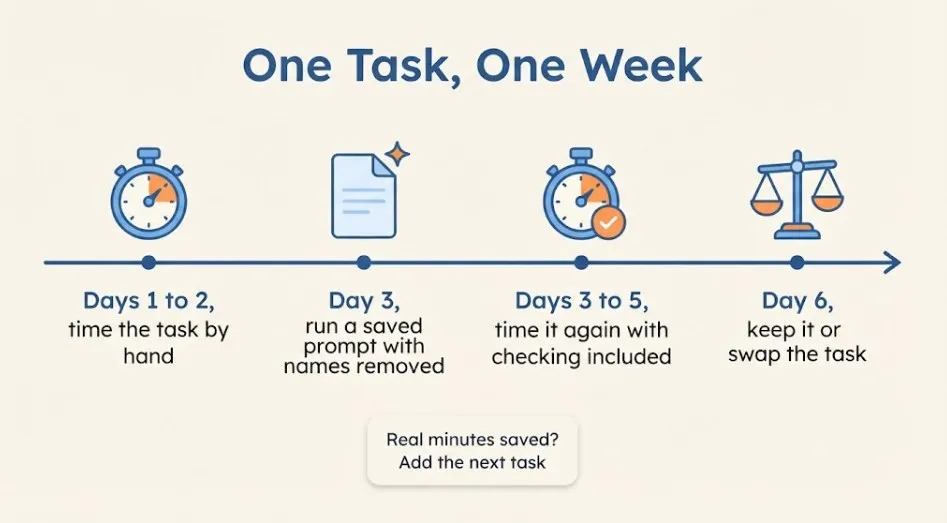
Want your own answer to “why use an AI assistant at work?” Don’t try to change your whole workday. Founderz suggests a simple pilot: pick one repetitive task, test it for a week or two, and measure the time before and after. Here’s a version built for you:
- Pick one task. Email thread summaries are a great start. They’re quick and low-risk.
- Time your normal way. For two days, note how long the task takes without AI.
- Open one assistant. Use your company’s approved tool, or a free plan if there’s no policy against it.
- Use a saved prompt. Copy one from this guide. Remove names and private details first.
- Time it again for three days. Include your checking time. That’s part of the job.
- Keep it or drop it. Saved real minutes? Keep it and add the next task. If not, try a different prompt or task.
That’s it. One task, one week, real numbers. Once it clicks, pick another task from the list of 10. New to all this? Start with AI tools for beginners. If you’d like step-by-step help, head to our learn hub.
Frequently Asked Questions
What is an AI assistant, in simple words?
It’s software that helps you finish tasks when you ask. You tell it what you need, like “summarize this thread” or “draft a reply,” and it gives you a first version. You review and edit it. Unlike a script-based chatbot, it can handle many kinds of requests.
What tasks can an AI assistant do at work?
The most useful ones for office employees are summarizing emails and documents, drafting replies, writing meeting notes and follow-ups, building status updates, cleaning data, and prepping briefs. SHRM’s overview also covers search, analysis, and department-specific uses.
Which AI assistant is best for office work?
There’s no single winner. If your company uses Microsoft 365 or Google Workspace, start with the built-in assistant your IT team approves. Otherwise, try the free plans of ChatGPT, Claude, and Gemini with the same prompt and keep the one that fits your writing. See the comparison table above.
Is it okay to use AI at work?
Usually, yes, if your employer allows it and you follow their rules. Never paste confidential data into public tools, and always check the output before you send it. Check your company’s AI policy first, or ask your manager or IT team.
Can my employer make me use AI?
It depends on your country, your contract, and your company’s rules, and this guide can’t give legal advice. Many employers do set expectations about tools. If you’re unsure, ask HR in writing what’s expected and what’s allowed. SHRM notes that the best rollouts include clear guidelines and practical training, so it’s fair to ask for both.
Will an AI assistant read all my emails?
Not by default. A general chatbot only sees what you paste in. Assistants built into email apps can read your mailbox if you or your company turn that on. Check the settings and your IT policy before you connect anything.
Is a free AI assistant good enough?
For most people starting out, yes. Free plans handle summaries, drafts, and rewrites well. You’ll hit message or usage limits if you use it heavily all day. Upgrade only when limits get in your way. Plans and prices change, so check each tool’s official page.
Final Thoughts
So, why use an AI assistant at work? Because most of your admin is the same few jobs on repeat, and an assistant is good at first drafts. It won’t run your job. It will clear the small stuff so you can focus on the work that needs you.
The research is honest about the catch. Savings are real on narrow tasks, but they can disappear if you hop between apps or just take on more work. That’s why the answer to “why use an AI assistant at work?” comes with a simple plan: one task, one tool, one week of real timing.
Verdict: Yes, use one. Start with a free assistant (or your company’s approved tool) and aim it at email thread summaries and meeting notes first. Keep sensitive data out, check every output, and pay only if you keep hitting limits. If it doesn’t save you real minutes in a week, drop it and try a different task.